
Qwen Image product photos: edit the scene, keep details
Make Qwen Image product photos from a reference or a fictional concept. Check labels, shape, material and crop before using the result.
Last updated: 2026-10-15
Are you inventing a product, or presenting one you sell?
Use Create to explore a fictional bottle, packaging direction or campaign mood. Use Edit with a real reference when the image must show a specific item. A text description alone does not establish the exact shape, label or finish of your product.
This distinction matters more than adding “professional product photography” to every prompt. A beautiful invented bottle is useful for a concept board; it may be unsuitable for a listing of an actual bottle.
A real generated concept, with a clear boundary
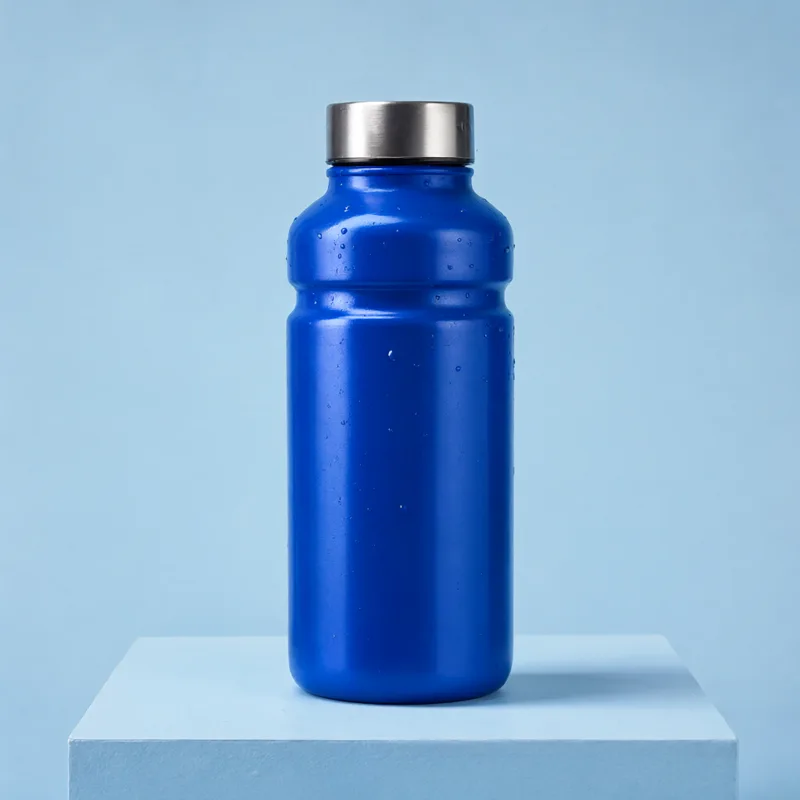
This is our existing Qwen Image 2.1 sample, generated on October 15, 2026. It depicts a fictional bottle, not a verified photograph of a real SKU. You can inspect its original and full prompt in the homepage sample explorer.
Premium studio product photograph of a fictional cobalt blue insulated water bottle with a brushed silver cap, placed on a pale blue architectural plinth, subtle water droplets, soft directional daylight, clean seamless ice blue background, realistic materials, no logo, no text, square composition, commercial product concept
The sample demonstrates a visual direction. It does not prove that the model can preserve your packaging, label wording or dimensions.
Prepare a real product photo for Edit mode
Choose a sharp photograph with the entire product visible. Use the view you want to retain in the final image. If the logo is tiny or obscured by glare, a prompt cannot reliably recover its exact design.
Upload one PNG, JPEG or WebP under 10 MB. Pick a similar aspect ratio and start with a single change, such as replacing the background. Avoid requesting a new angle, new material and new label at the same time.
Replace only the background with a pale blue studio backdrop and a simple matte plinth beneath the bottle. Keep the original bottle silhouette, cap, label wording, logo position, material and camera angle. Keep the full product visible. Do not add accessories or extra text.
This is a suggested prompt to adapt, not a tested result for your product. The workspace does not provide a brush mask, so compare the whole item after every edit.
Use a five-point acceptance check
- Shape: count handles, buttons, seams and other defining parts. Compare proportions with your reference.
- Label: check every visible letter, logo placement and small symbol. Do not accept plausible-looking invented copy.
- Material: look for unintended changes from matte to glossy, metal to plastic, or clear to opaque.
- Scene: verify that the shadow and contact point make sense and no accessory implies something is included when it is not.
- Crop: check the image in the actual listing or banner shape. Leave space where a heading or interface will sit.
If exact packaging must remain untouched, cut out the original product and compose it over a separate background in a layer editor. Keep the original product pixels instead of regenerating the label repeatedly.
Square listing or wide banner?
Decide the destination before generating. A square image can center the item; a wide banner often needs the item on one side with empty space for copy. Select the aspect ratio in the workspace. Writing “wide banner” in the prompt is not a substitute for that control.
For a cutout, use the transparency option and check the downloaded PNG on both a light and a dark background. A white backdrop is not transparency. See the transparent PNG guide.
Spend on the accepted composition
Start with 1K to evaluate the layout. Request 2K when you need a larger output, but expect another generated result rather than a guaranteed identical upscale. Keep the accepted 1K file. The resolution guide lists current costs by model, resolution and edit mode.
Before publishing, compare the image with the item the customer will receive and check the destination marketplace's image requirements. No generated example can verify that match for you.