
Qwen Image face consistency: a reference-editing guide
Keep a face recognizable in Qwen Image edits. Compare a real background-change test, use one reference and check the details that drift.
Last updated: 2026-10-15
Reduce the edit before adding more instructions
If you only wanted a new shirt color but got a different face, return to the original reference and request one change. Avoid adding a new pose, camera angle, expression and lighting setup in the same attempt. A narrower brief makes it easier to see which change caused the drift; it still cannot guarantee identical features.
This is a real user problem: an issue in the original Qwen-Image repository reports a changed face after requesting clothing and background color changes. The report is from August 2025 and concerns an earlier release. It establishes the user need, not a measured failure rate for 2.1 or this website.
Our test: change the background, then inspect the face
We generated this fictional adult portrait with Qwen Image 3 Pro, then used it as the single reference for one background edit on October 15, 2026. No customer photo was used. Both requests used 1K, 3:4, PNG, seed 42, prompt enhancement off and the negative prompt “watermark”.
Prompt used to create the reference
A natural photographic head-and-shoulders portrait of a fictional adult woman, age 35, dark brown eyes, short wavy dark brown bob haircut, a few freckles over the nose and cheeks, small silver hoop earrings, wearing a plain navy crew neck sweater. Front-facing with a relaxed closed-mouth smile, both ears partly visible, soft daylight, realistic skin texture. Plain warm light-grey studio background, centered composition, no props, no text.
The edit instruction was:
Change only the plain grey background to a softly blurred green garden. Keep the same person: preserve her face shape, eyes, nose, mouth, freckles, short wavy hair, silver hoop earrings, navy sweater, pose, crop, and expression. Do not retouch or beautify the face.

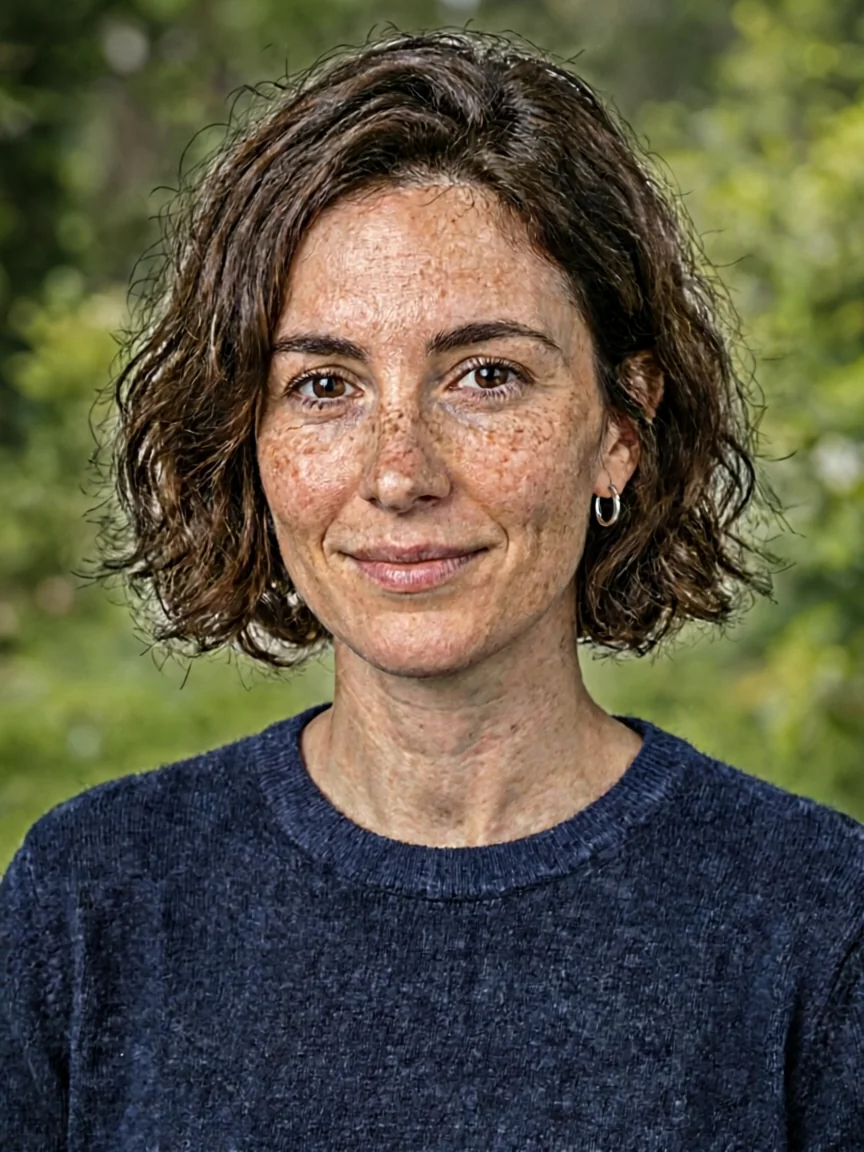
The background changed as requested. The crop, dark bob, navy sweater and visible silver hoop stayed similar. Look closely at the forehead and cheeks: the freckles and skin texture became much stronger, and the hair looks more sharply outlined. We would not treat this as an unchanged face, even though the portrait is recognizable.
That distinction matters for a client headshot. Check facial details at full size before accepting the background change. If exact preservation is required, a masked background replacement in a conventional editor gives you a more controlled workflow. This single test does not measure the model's overall identity accuracy.
Start with a reference that shows what matters
Use a clear image with the face visible and large enough to inspect. If the reference is blurry or heavily filtered, the model has less reliable visual detail to preserve. Keep the original file separately so each comparison has the same baseline.
On this site, select Edit and upload one PNG, JPEG or WebP under 10 MB. It accepts one reference per request. Workflows that depend on several reference slots, LoRA training, a denoise slider or brush masking cannot be followed directly in this interface.
Ask for one change and name the details to retain
A useful prompt separates the requested change from the features you need to keep:
Change only the shirt color from white to navy blue. Preserve the person's face shape, eye shape, nose, mouth, skin texture, hairstyle, expression and head position. Keep the pose, background, lighting and framing unchanged.
Replace the shirt colors with the ones in your own image. Do not ask for a “more beautiful face” or “perfect skin” if your goal is resemblance: those directions ask the model to redesign details you are also asking it to preserve.
Choose an aspect ratio close to the source. A different frame may require repositioning or cropping, which introduces another variable. These are starting instructions, not a tested identity-lock feature.
Compare more than overall resemblance
Look at the original and result side by side at the same display size. Check eye spacing, nose shape, mouth corners, jawline, hairline and distinctive details. Also check whether the head angle or expression changed. A polished portrait can still be the wrong result for your task.
Keep the result only when both conditions are met: the requested edit is visible, and the features you care about remain acceptable. If you cannot judge from the preview, download the original output before purchasing more attempts.
The first attempt still changed the face
- Return to your original upload, not the already altered face.
- Remove any second task, such as changing the background alongside the shirt.
- Make one bounded retry, using a clearer reference if you have one.
- If the face still drifts, use a layer-and-mask editor to restrict the change to the clothing or background.
For multiple edits, save an accepted intermediate result and inspect it before the next change. Do not repeatedly feed a drifting face back into the model and expect it to recover the original identity.
Can this guarantee the same person in every image?
No. Text instructions do not lock pixels, and this workspace does not offer a dedicated face-consistency control. A new pose, large viewpoint change or heavy stylization may need a different workflow. For a simple object-color edit with a real before/after example, see reference editing.